
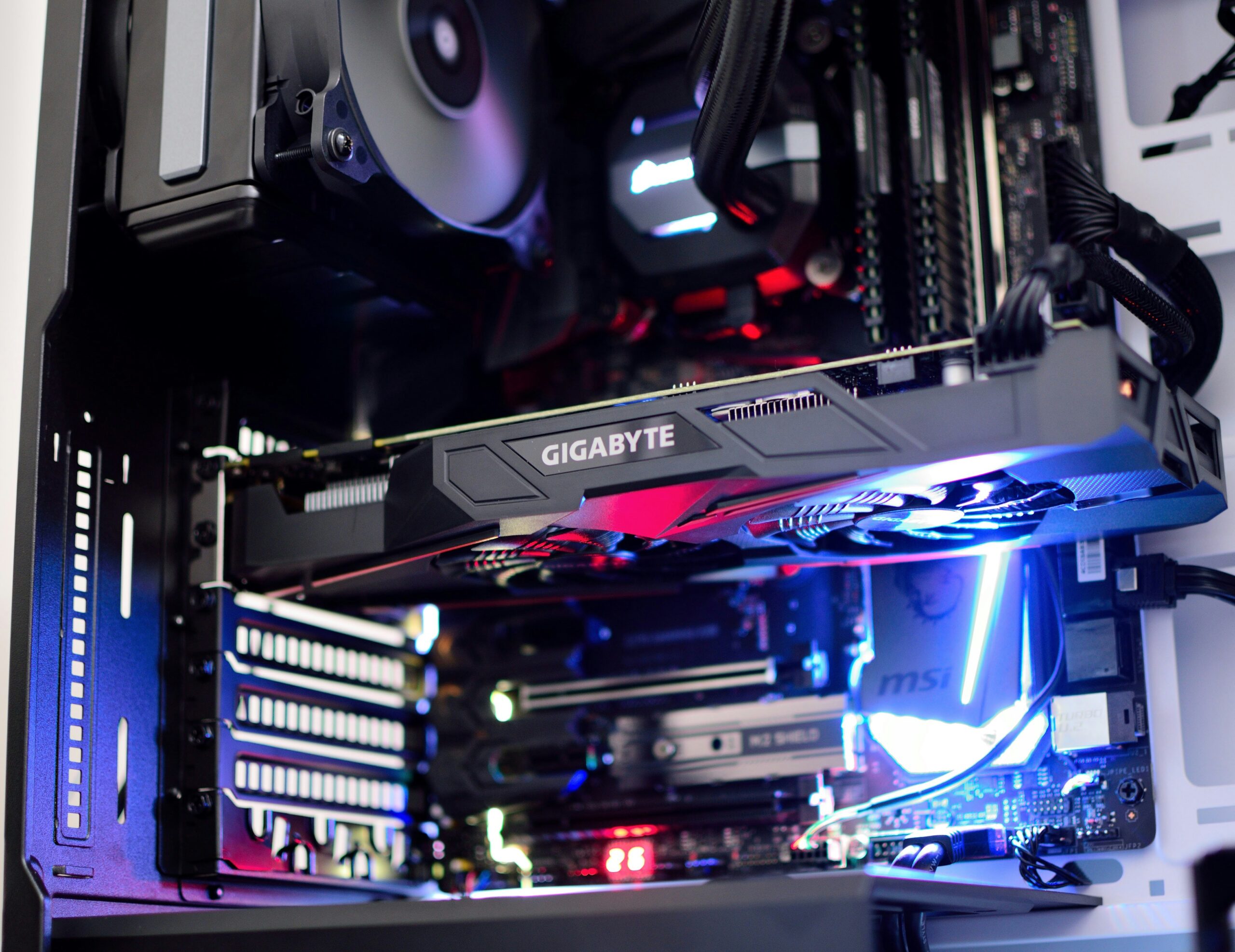

A gaming PC generates far more heat than a typical home computer. A modern CPU and GPU pushed hard together in a demanding game can put out 400-600+ watts of heat into the case — and in Peoria or Sun City, that case is often sitting in a garage, a converted bedroom, or an office that’s already fighting a 110°F+ afternoon outside. If your frame rates dip after 20 minutes of gameplay, your GPU sounds like it’s taking off, or your case is uncomfortably hot to the touch, cooling is very likely the bottleneck — not your components. Here’s how to actually fix it.
Case Airflow: Intake vs. Exhaust Balance
Before touching the CPU cooler or GPU, check the basics: how air actually moves through the case. A healthy gaming PC needs a clear path of cool air in the front or bottom (intake) and hot air out the top or back (exhaust). Too many exhaust fans and not enough intake creates negative pressure, which pulls dusty room air in through every gap and crevice instead of through filtered intake vents — a problem that shows up fast in Arizona’s dusty air. Too little exhaust, and hot air just recirculates inside the case. As a rule of thumb, aim for roughly equal intake and exhaust airflow, or slightly more intake, and make sure cables and drive cages aren’t blocking the front-to-back airflow path.
CPU Cooling: Air vs. AIO Liquid
Both air coolers and all-in-one (AIO) liquid coolers can handle high-end CPUs well — the right choice depends on the build, not just raw performance:
- A quality tower air cooler is reliable, has no pump to eventually fail, and handles mid-range and many high-end CPUs without issue. It’s usually the better choice in a garage build where long-term reliability in a hot, dusty environment matters more than squeezing out the last few degrees.
- An AIO liquid cooler (240mm-360mm radiator) generally cools better under sustained heavy load and keeps noise down at high temperatures, which matters for top-tier CPUs paired with a high-end GPU in a smaller case. The tradeoff is a pump that can eventually wear out and radiator fins that need occasional cleaning.
If your current air cooler is years old and your CPU is running hot under load, reapplying thermal paste and cleaning the heatsink is often enough — see our general guide on computer overheating in Arizona for the maintenance side of this.
GPU Thermal Issues
Graphics cards throttle themselves the same way CPUs do, and it’s one of the most common reasons a gaming PC’s frame rate drops the longer a session runs. Common culprits include dust-caked fan blades and heatsink fins, dried thermal paste or degraded thermal pads on an older card, a case with restricted airflow around the GPU, or simply mounting the card vertically in a case that wasn’t designed to ventilate it that way. If your GPU is regularly hitting 85°C+ under load and throttling, a cleaning and repaste is usually the fastest, cheapest fix before assuming the card itself needs replacing.
Dust Filters Matter More Here Than Almost Anywhere
The Valley’s dry climate produces extremely fine dust that gets pulled into every intake fan. Cases with magnetic or slide-out front and bottom filters make a real difference — they can be pulled and rinsed or vacuumed every few weeks without opening the case, which keeps dust off the heatsinks and radiator fins where it does the most damage to cooling performance. If your case has no dust filters at all, that’s worth fixing before anything else.
Ambient Room Temperature: The Arizona Factor
Even a perfectly built cooling system is fighting physics if the room itself is hot. A gaming PC in a garage that regularly hits 95-100°F in summer, or a bedroom where the AC vent was closed to save on cooling costs, will run noticeably hotter and throttle sooner than the same PC in a 72°F office — no amount of case fans fully compensates for that. If your gaming PC lives somewhere that consistently runs hot, consider adding a small room fan for airflow, keeping the AC vent open to that room during gaming sessions, or, for garage setups, at minimum keeping the PC off the floor and away from direct sun through a window or garage door.
Cooling Upgrade or Case Swap?
If your current case has good filters, enough fan mounts, and reasonable airflow, upgrading individual fans, adding an AIO, or doing a cleaning and repaste is usually the more cost-effective fix. If the case itself is small, has poor ventilation, only supports one or two fans, or simply can’t fit a larger cooler or radiator, a case swap makes more sense — especially if you’re also upgrading the CPU or GPU at the same time. We cover the full case-swap process, including what to check before moving your hardware into a new enclosure, in our guide to building a gaming computer in Peoria, AZ.
Emerald Computers diagnoses gaming PC thermal problems starting with a $35 diagnostic (waived with a paid repair), and handles everything from a cleaning and repaste to a full case swap or new cooling install at our standard $195/hour labor rate. If your gaming PC has other symptoms beyond heat — crashes, black screens, or driver issues — see our gaming PC repair guide for the full troubleshooting picture.
Frequently Asked Questions
What temperature is too hot for a gaming CPU or GPU?
Most modern CPUs are safe up to around 90-95°C and most GPUs up to around 83-90°C, but you don’t want to be running at those limits constantly. If your CPU regularly sits above 85°C or your GPU above 80°C under sustained gaming load, it’s a sign your cooling needs attention even if the system isn’t throttling yet.
Is an AIO liquid cooler worth it over air cooling?
For most mid-range builds, a good air cooler performs nearly as well and is more reliable long-term. An AIO is worth the extra cost mainly for high-end CPUs paired with a demanding GPU in a compact case, where the extra cooling headroom and lower noise under load make a real difference.
How often should I clean dust out of my gaming PC in Arizona?
We recommend wiping down or rinsing removable dust filters every 2-4 weeks, and a full interior cleaning with a proper heatsink and fan blade cleanout every 6-12 months, more often for garage-based systems.
Can better cooling actually improve my frame rate?
Yes. Modern CPUs and GPUs automatically boost their clock speed when there’s thermal headroom, and throttle down when they run hot. Fixing a cooling bottleneck often recovers frame rate you didn’t realize you were losing, with no other hardware changes needed.
Emerald Computers Locations
Peoria: 7642 W Vogel Ave, Building 3, Peoria, AZ 85345 — 623-240-2424
Sun City: 10001 W Bell Road, Suite 126, Sun City, AZ 85351 — 623-223-7397
Comments are closed