
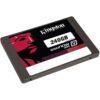

If you clicked on this because your computer takes forever to boot, or programs take an eternity to open, there’s a good chance the fix is simpler and cheaper than you think. We covered the full list of causes for a slow computer in a separate guide, but one upgrade shows up as the answer more than any other: swapping a spinning hard drive for a solid-state drive (SSD). Here in Peoria, AZ, it’s the single most common upgrade we perform, and for most people it’s the best dollar-for-dollar improvement you can make to an aging computer.
SSD vs. HDD: What the Speed Difference Actually Looks Like
A traditional hard disk drive (HDD) stores data on a spinning magnetic platter and uses a physical arm to read and write it — similar in concept to a miniature record player. An SSD stores data in flash memory chips with no moving parts at all. That difference isn’t theoretical; it shows up in everyday use in ways anyone can notice:
- Boot time. A computer that takes 3–5 minutes to fully boot on an HDD typically boots in 15–30 seconds on an SSD.
- Program load time. Opening a web browser, Word, or a photo editor goes from several seconds of spinning-wheel waiting to nearly instant.
- File transfers and copying. A typical HDD reads and writes around 80–160 megabytes per second. A SATA SSD runs 400–550 megabytes per second — roughly 3 to 5 times faster.
- Overall responsiveness. Windows updates install faster, multitasking feels smoother, and the computer doesn’t freeze or stutter while the drive struggles to keep up with what the CPU is asking for.
How to Tell If You Still Have a Spinning Hard Drive
A lot of computers sold before roughly 2018–2019, and plenty of budget models since, still ship with a mechanical hard drive as the primary drive. A few quick ways to check:
- Open Windows’ Task Manager, click the Performance tab, and look at the Disk section. It will usually say whether the drive is an SSD or HDD directly.
- Listen and feel. A spinning hard drive makes a faint whirring or clicking sound and you can sometimes feel a slight vibration when it’s working hard.
- If you’re not sure, bring it in. Our $35 diagnostic (waived with a paid repair) identifies your drive type along with everything else that could be slowing the computer down.
SSD Upgrade Pricing at Emerald Computers
We keep SSD pricing simple and transparent:
- 500GB SATA SSD — $65 (drive only), plus installation labor.
- 1TB SATA SSD — $95 (drive only), plus installation labor.
- Installation includes physically swapping the drive and either cloning your existing Windows installation and files over, or performing a fresh Windows Wipe and Install ($110) if you’d rather start clean. Labor for a straightforward swap-and-clone is typically billed at our $195/hr rate or quoted as a flat fee depending on the job.
- If you just want the drive without installation, that’s available too — some customers prefer to install it themselves.
For most everyday users, the 500GB drive has plenty of room once we clean up unnecessary files during the migration. If you store a large photo, video, or game library locally, the 1TB option avoids running out of space again within a year or two.
When an SSD Swap Beats Replacing the Whole Computer
An SSD upgrade makes the most sense when the rest of the computer is still capable: the CPU isn’t ancient, there’s a reasonable amount of RAM (or you’re pairing the SSD with a RAM upgrade), and the machine can still run the version of Windows you need. In that situation, spending well under $200 total to feel like you have a new computer is hard to beat. It stops making sense when the motherboard, CPU, or other core hardware is failing independently, or when the computer can’t meet Windows 11’s requirements no matter what storage you put in it — in those cases, replacement is the better move.
Frequently Asked Questions
How much does an SSD upgrade cost in Peoria, AZ?
At Emerald Computers, a 500GB SATA SSD is $65 and a 1TB SATA SSD is $95, both plus installation labor. Installation typically includes cloning your existing setup or a fresh Windows install, depending on what you prefer.
Will an SSD upgrade make an old computer feel new?
In most cases, yes, especially if the current bottleneck is a spinning hard drive. Combined with adding RAM if needed, an SSD upgrade is usually the biggest and most noticeable improvement you can make short of replacing the entire computer.
Can I upgrade a laptop to an SSD, or only a desktop?
Most laptops built in the last 10–12 years can accept an SSD upgrade, though the exact process depends on whether the laptop uses a standard SATA drive bay or requires a specific form factor. Bring it in and we’ll confirm compatibility before you pay for anything.
Do I need to back up my files before an SSD upgrade?
We always recommend having a backup of anything irreplaceable before any hardware work, though our standard process is to clone your existing drive to the new SSD so your files and programs transfer automatically in most cases.
Emerald Computers Locations
Peoria: 7642 W Vogel Ave, Building 3, Peoria, AZ 85345 — 623-240-2424
Sun City: 10001 W Bell Road, Suite 126, Sun City, AZ 85351 — 623-223-7397
Comments are closed