
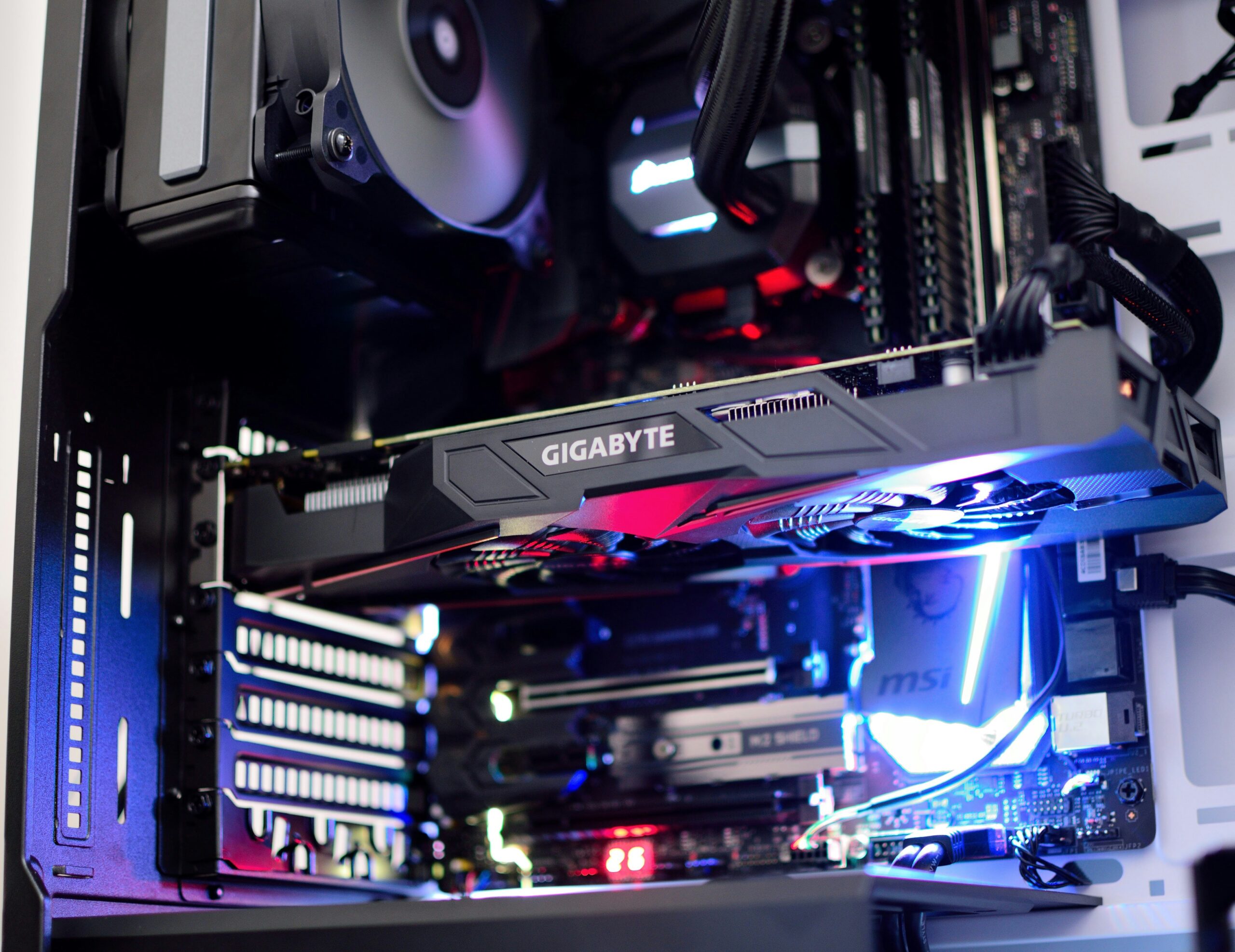

A gaming PC has more moving parts, more power draw, and more heat to manage than a typical home computer, which means more things that can go wrong — and more ways a problem can get misdiagnosed if you don’t know where to look first. Below are the gaming PC problems we see most often at our Peoria and Sun City locations, with a short diagnostic path for each, so you have a starting point before you bring it in.
Random Crashes or BSOD During Gameplay
If your PC crashes to a blue screen (BSOD) or restarts specifically during gaming but not while browsing or working, that pattern points to a component that fails only under heavy load: the GPU, the power supply, or RAM. Start by checking whether the crash happens in every game or just specific, especially demanding titles — that helps narrow it to a thermal or power issue versus a driver conflict with one particular game. Note the BSOD error code if one appears; it often points directly at the faulting driver or subsystem. If crashes happen consistently after a similar amount of play time, heat is the most likely culprit — see the overheating section below.
Overheating and Thermal Throttling
If frame rates drop the longer you play, fans ramp up loudly, or the case is hot to the touch, your CPU or GPU is very likely throttling itself to avoid damage — especially common here given Arizona’s summer heat. Start by checking case airflow and dust buildup, since these are the most common and least expensive causes. We cover this in full detail, including CPU/GPU-specific fixes and case airflow guidance, in our gaming PC cooling guide for Arizona desert heat. If your gaming PC is one of several computers in the house acting up in the heat, our broader computer overheating in Arizona guide covers the general maintenance side.
No Display or Black Screen
A gaming PC that powers on (fans spin, lights turn on) but shows nothing on the monitor usually points to one of a few things: the monitor cable plugged into the motherboard instead of the graphics card (an easy mistake after an upgrade or case swap), a GPU that has come loose or failed, a monitor input set to the wrong source, or, less commonly, a failed RAM stick preventing the system from posting. Check the obvious things first — correct cable, correct monitor input, GPU seated firmly in its slot — before assuming a component has failed. If you just installed a new graphics card or other hardware and the screen went black afterward, our guide on what to check when a PC won’t turn on after an upgrade walks through the most common causes step by step.
GPU or Driver Issues
Visual artifacts (flickering, odd colored blocks, texture glitches), games crashing to desktop, or a display driver that repeatedly “crashes and recovers” are usually driver or GPU hardware problems rather than a full system fault. A clean driver reinstall solves this more often than not, but if artifacts persist after a clean driver install, the GPU itself may be failing, or it may be a sign the card is overheating. If your card is aging and you’re weighing a driver fix against a full upgrade, see our guide on whether your graphics card is worth replacing.
Instability Under Load (Power Supply Related)
A system that randomly shuts off completely (not a blue screen, just off) during intense gaming moments, or that becomes unstable only when the GPU is under full load, often points to the power supply — either it’s underpowered for the components installed, it’s aging and no longer delivering clean power under load, or a connector isn’t fully seated. This is especially common after a GPU upgrade where the power supply wasn’t reassessed at the same time.
How Emerald Computers Diagnoses Gaming PC Problems
Every gaming PC repair starts with a $35 diagnostic (waived if you move forward with a paid repair), where we test the system under real load — not just at idle — to catch problems that only show up during actual gameplay. That means stress-testing the CPU and GPU, checking thermal performance, testing RAM, and verifying power delivery under load. From there, repairs are billed at our standard $195/hour labor rate, and a $35 bench fee applies to drop-off diagnostic work that doesn’t move forward with a repair. If your gaming PC needs a full rebuild rather than a repair, see our guide on building a gaming computer in Peoria, AZ.
Frequently Asked Questions
Why does my gaming PC only crash during gameplay?
Gaming puts sustained heavy load on the CPU, GPU, and power supply in a way everyday tasks don’t. A crash that only happens during gaming almost always points to one of those three components struggling under that load, most commonly due to overheating or an underpowered power supply.
My screen is black but my PC seems to be running. What’s wrong?
First check that your monitor cable is plugged into the graphics card, not the motherboard’s built-in video port, and confirm the monitor is set to the correct input. If both check out, the GPU may have come loose or failed, which we can confirm with a quick diagnostic.
How long does a gaming PC repair take?
Diagnostics are often completed same-day. Simple repairs like a driver reinstall, cleaning, or thermal paste replacement are frequently finished within a few hours; parts-dependent repairs like a GPU or power supply replacement depend on part availability, which we’ll confirm during your diagnostic.
Is it worth repairing an older gaming PC or should I build a new one?
It depends on what’s failing. A cooling issue, driver problem, or single failed component is almost always worth repairing. If the motherboard or CPU itself has failed, or several components are aging out at once, a fresh build may offer better long-term value — we’ll always give you an honest comparison before you decide.
Emerald Computers Locations
Peoria: 7642 W Vogel Ave, Building 3, Peoria, AZ 85345 — 623-240-2424
Sun City: 10001 W Bell Road, Suite 126, Sun City, AZ 85351 — 623-223-7397
Comments are closed