
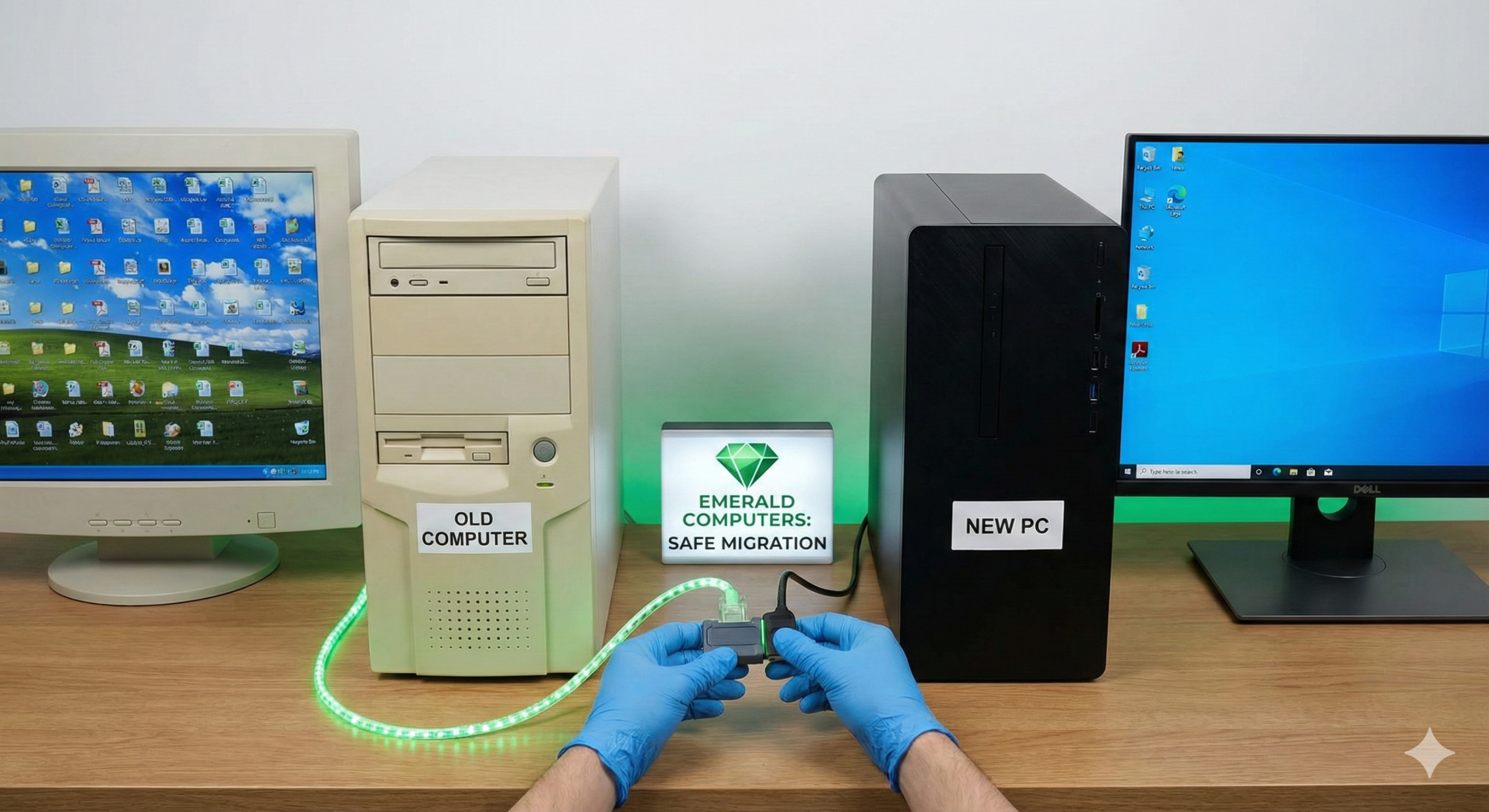
Getting your files onto a new computer sounds simple: drag, drop, done. In practice, a full data transfer involves more than documents and photos, and a few common mistakes can leave you locked out of accounts or missing things you didn’t realize needed special handling. Here’s what actually moves over cleanly when you switch computers, what doesn’t, and how Emerald Computers handles data transfer for customers in Peoria and Sun City, AZ.
What Can Be Transferred
Most of what people actually care about transfers over without much trouble:
- Documents, photos, and videos — anything stored in your user folders (Documents, Pictures, Desktop, Downloads) copies directly to the new machine.
- Browser bookmarks and saved passwords — if you’re signed into a Google, Microsoft, or Firefox account, these typically sync automatically once you sign in on the new computer. If you weren’t syncing, we can export and import them manually.
- Email setup — if you use a web-based or account-based email service (Outlook, Gmail, iCloud Mail), your email reappears automatically once you sign in. Locally stored email (older Outlook .pst files, for example) needs to be copied over manually.
- Desktop background, some personal settings — certain preferences can be carried over, though Windows itself doesn’t make this as seamless as your phone does when you switch devices.
What Typically Can’t (or Shouldn’t) Be Transferred
This is where most DIY transfers run into trouble:
- Installed programs — you generally cannot just copy a program folder from an old computer to a new one and have it work. Windows programs rely on registry entries, system files, and dependencies that a simple copy leaves behind. Programs almost always need to be reinstalled fresh on the new computer.
- Licensed software — software tied to a product key or license (Microsoft Office purchased outright, some accounting or design software) often needs to be deactivated on the old computer before it can be activated on the new one, or requires contacting the software vendor to transfer the license.
- Device drivers — drivers are specific to the exact hardware in each computer. The new computer needs its own drivers, not copies from the old one.
Transfer Methods
Depending on how much data you have and how the two computers are equipped, we typically use one of these methods:
- Direct cable transfer — a fast, direct connection between the old and new computer. Usually the quickest method for large amounts of data (hundreds of gigabytes of photos or video, for example) since it isn’t limited by internet upload speed.
- Cloud transfer — using a service like OneDrive, Google Drive, or Dropbox to sync files from the old computer and pull them down on the new one. Convenient for smaller amounts of data or when you want an ongoing backup anyway, but slower for large libraries and dependent on your internet connection.
- External drive — copying everything to a portable hard drive or USB drive, then copying it onto the new computer. Reliable and doesn’t depend on internet speed, though it requires having a drive large enough for everything.
We evaluate how much data you have and pick whichever method gets you up and running fastest, sometimes combining methods (cloud sync for ongoing files, cable transfer for a large media library, for example).
Common Pitfalls to Watch For
- Encrypted files — if files were encrypted on the old computer (BitLocker on the drive, or password-protected files and folders), you need the encryption key or password before transfer, or the files may become inaccessible. This is easy to overlook until it’s too late.
- Two-factor authentication resets — authenticator apps (Google Authenticator, Microsoft Authenticator, banking apps) are often tied to the specific device, not just your account. Moving to a new computer, or even just a new phone alongside it, can lock you out of accounts until you go through account recovery. Plan ahead by backing up your authenticator app or having recovery codes on hand before you switch devices.
- Assuming “signed in” means “backed up.” Being logged into a cloud account doesn’t always mean everything is actually synced. It’s worth confirming a sync has actually completed before wiping or retiring the old computer.
- Software license limits — some licenses only allow activation on a limited number of devices. If you don’t deactivate the old computer first, you may find the new installation won’t activate.
Data transfer is included as part of our standard new computer setup service, billed at our $195/hr labor rate, with most transfers taking one to two hours depending on how much data you have and which method makes the most sense for your situation.
Frequently Asked Questions
Can you transfer my installed programs to the new computer?
Generally, no — installed programs need to be reinstalled fresh on the new computer rather than copied over, since they rely on system files and registry entries specific to the old machine. We can help identify which programs you use and get them reinstalled and licensed correctly on the new computer.
How long does a data transfer take?
Most transfers take one to two hours of labor at our $195/hr rate. Larger amounts of data (an extensive photo or video library, for example) can take longer, especially over a cloud connection. We’ll estimate the time based on how much data you have before starting.
Will I lose access to my accounts after switching computers?
Not if it’s planned for. The most common issue is two-factor authentication apps that are tied to a specific device. Before transferring, make sure you have backup codes or an alternate way to verify your identity for accounts using an authenticator app, so you aren’t locked out during the switch.
Two Locations Serving Peoria & Sun City, AZ
Peoria: 7642 W Vogel Ave, Building 3, Peoria, AZ 85345 — 623-240-2424
Sun City: 10001 W Bell Road, Suite 126, Sun City, AZ 85351 — 623-223-7397
Comments are closed